Shared Reservation Enhancements
Stay is enhanced to improve user experience when creating and managing shared reservations at the property by introducing configurable property-level controls.
Previously, shared reservations had limited configurability across rate plan behaviour, housekeeping pattern synchronization, room updates, and charge distribution amongst the reservations.
Through this enhancement, properties can:
-
Configure shared reservation behaviour at the property-level
-
Control rate plan inheritance across shared reservations
-
Define rate split logic
-
Apply charge distribution rules
-
Synchronize housekeeping patterns
-
Control room type and room number updates
-
Ensure compliance through validations and audit tracking
Property Level Settings
A new section, Shared Reservations, has been added to the Reservations tab of the Property Setup screen (All Settings ➜ General ➜ Property Settings ➜ Reservations) that displays the following new settings that must be configured to be applied to the shared reservations created for overlapping dates at the property:
-
Apply All
-
Apply Same Rate Plan to All Shared Reservations
-
Apply Do Not Disclose Rate to All Shared Reservations
-
Apply Do Not Move to All Shared Reservations
-
Apply Same Housekeeping Pattern to All Shared Reservations
-
Update Room Number and Type for All Shared Reservations
The following table lists the functionality supported by each flag:
|
Field |
Description |
|---|---|
|
Apply All |
This flag must be enabled to turn on the remaining flags. When this flag is enabled and users disable any of the remaining flags, the Apply All flag will be disabled. |
|
Apply Same Rate Plan to All Shared Reservations |
This toggle is applicable only when the rate split option is set to Entire Rate to Each Sharer.
|
|
Apply ‘Do Not Disclose Rate Plan’ to All Shared Reservations |
|
|
Apply Same Housekeeping Pattern to All Shared Reservations |
|
|
Update Room Number and Type for All Shared Reservations |
When this flag is enabled and users modify the room number/room type of any shared reservation, the following options will be displayed:
When this flag is disabled and users modify the room number/room type of any shared reservation, the following option will be displayed:
|
Creating Shared Reservations
Shared reservations can be created with two or more reservations that have overlapping stay dates and occupy the same room. Users can add an existing reservation or create new reservations in the Share Reservation screen (Reservation ➜ Reservation Summary ➜ Share badge).
The selected reservation must have at least one overlapping day with the primary reservation. Reservations in the following statuses can be shared:
-
Reserved
-
Arriving
-
In-house
For example, consider a reservation, A, with stay dates from Jan 22, 2026, to Jan 24, 2026, and another reservation, B, with stay dates from Jan 24, 2026, to Jan 26, 2026. These reservations can be shared since they have an overlapping date, Jan 24th.
Sharing Existing Reservations
Details Tab
When users add existing reservations to create a share set, all reservations applicable for sharing will be displayed in the Details tab of the Add Existing Reservations pop-up screen (Reservation ➜ Reservation Summary ➜ Share badge ➜ More ➜ Add Existing Reservations).
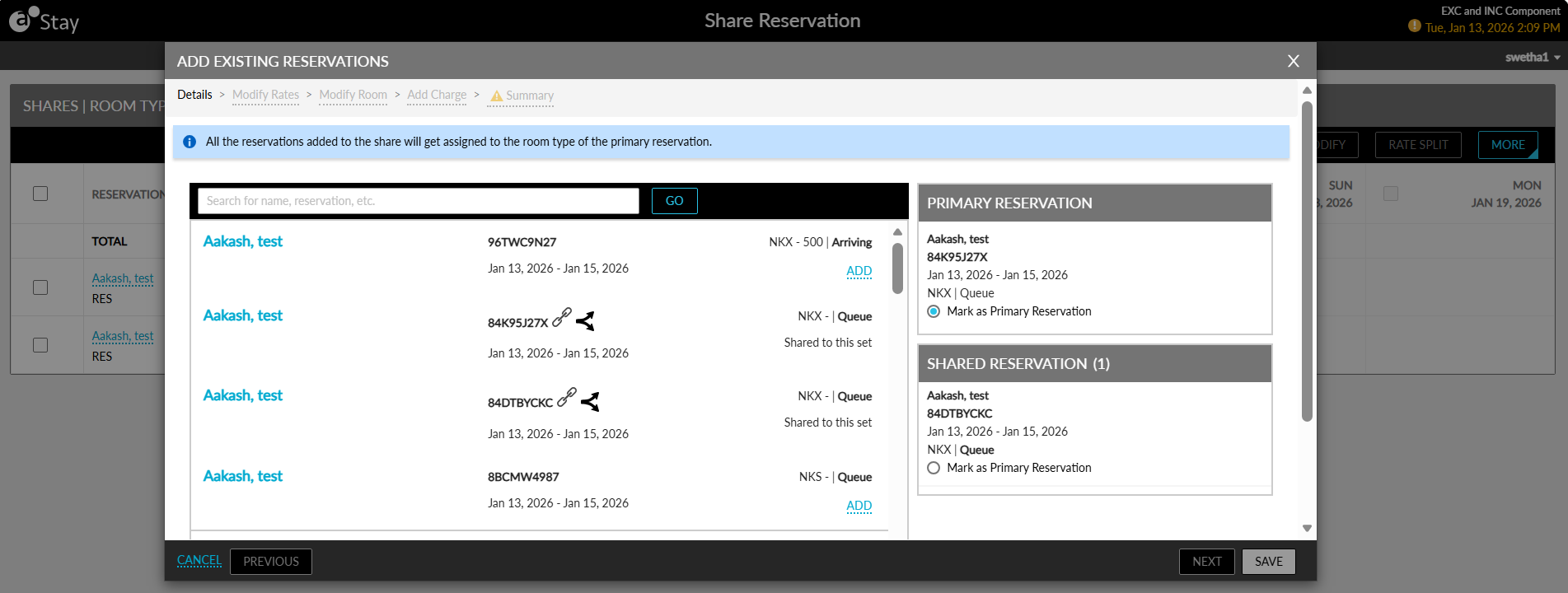
The reservations that satisfy the following conditions are displayed:
-
The dates must overlap with the primary reservation.
-
The status of the reservations must be; Reserved, Arriving, or In-house.
-
Must not contain multiple room types during the stay
-
Must not be marked as Do Not Move.
A maximum of 20 reservations can be included in a share set. If the user attempts to exceed this limit, the Add button is disabled. Users can add existing reservations, create new reservations, or designate any reservation as the primary reservation.
Reservations are prevented from being shared under the following conditions:
-
The primary room type is unavailable for the entire share period.
-
The primary rate plan is unavailable.
-
A reservation marked as Do Not Move is selected.
-
The maximum guest count for the room type is exceeded.
-
A reservation has multiple room types during the stay.
When users click on the Next button, they will be navigated to the Modify Rates tab.
Modify Rates Tab
The Modify Rates tab displays the following details:
-
Guaranteed and requested attributes
-
The selected rate split option (default option selected is Split Rate)
-
The Keep Current Rates checkbox (enabled by default)
-
Options to include unavailable rates, show tax-exempt rate plans, and the available rate plans and room types.
Only the room types that are available for the entire duration of stay are displayed. For example, when a reservation, A, with stay dates from Jan 22, 2026, to Jan 24, 2026, and another reservation, B, with stay dates from Jan 24, 2026, to Jan 26, 2026, are shared, the room types that are available from Jan 22nd to Jan 26th are displayed.
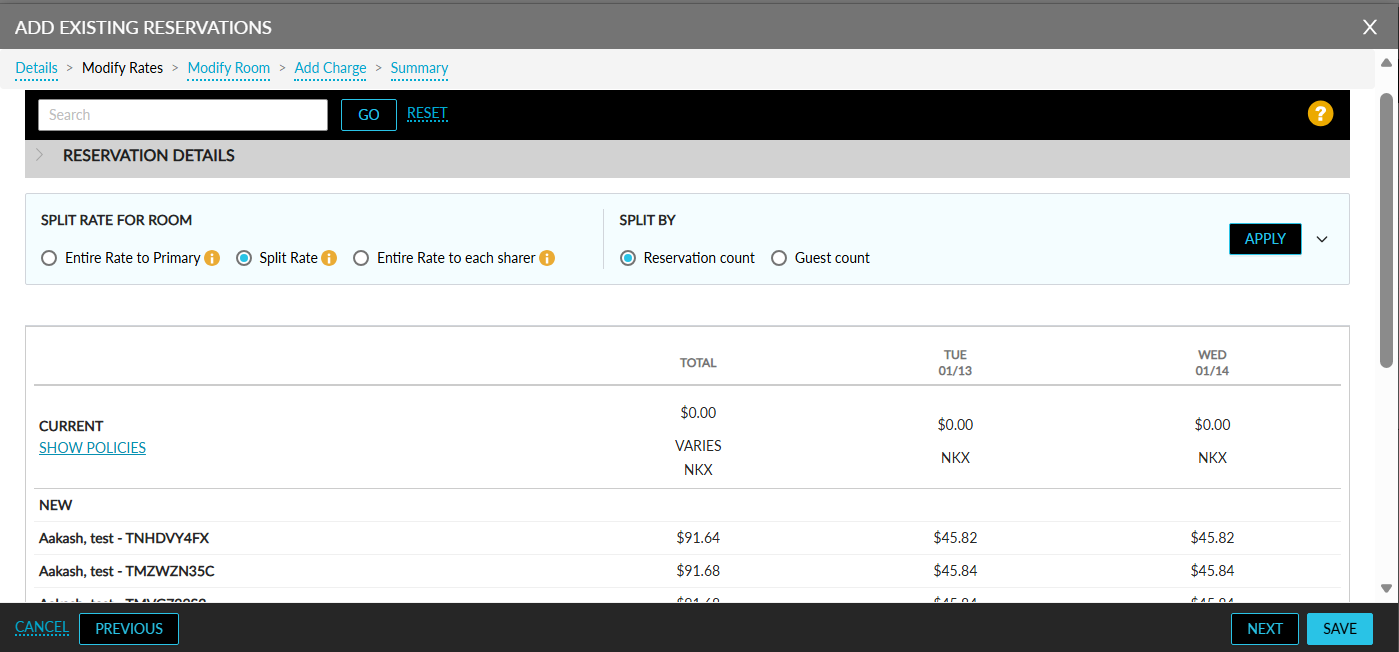
Users can select from the following rate split options:
Split Rate Options
The following options are displayed in the Split Rate screen:
Entire Rate to Primary
When this option is selected:
-
The primary reservation’s rate for overlapping days will be posted only to the primary reservation.
-
The secondary reservation’s rate will be displayed as zero for all rate plans on overlapping days.
Split Rate
When this option is selected:
-
The primary reservation’s rate will be split among the reservations for overlapping days.
-
The split will be calculated based on either:
-
Reservation Count, or
-
Guest Count.
-
When the user selects the Split Rate option, the Reservation Count and Guest Count options will be automatically displayed. By default, the Reservation Count option will be selected.
Based on the selected option, the rates displayed in the Modify Rates tab will be calculated accordingly for each applicable rate plan.
Entire Rate to Each Sharer
When this option is selected:
-
The full rate of each applicable rate plan will be displayed.
-
The entire rate will be applied independently to each reservation.
Manual Rate Override in Modify Rates
When the Entire Rate to Primary option is selected, the user will be allowed to override the rate from the section labelled New.
When the rate is overridden in the primary reservation from the New section or from the Summary section, the overridden rate will be applied only to the primary reservation.
When the rate is overridden in the secondary reservation from the Summary section, the overridden rate will be applied only to the respective secondary reservation.
For example, consider the room rate is applied as follows:
-
R1 (Primary) = $100
-
R2 (Secondary) = $0
When the rate is overridden for R1 from the New section or Summary section, the overridden rate will be applied only to R1, and R2 will remain as $0.
When the rate is overridden for R2 from the New section, the overridden rate will be applied only to R2.
When the rate plan is changed in the primary reservation, the rate will be recalculated and updated only for the primary reservation. The secondary reservation will be reset to zero, even if an override had previously been applied.
This applies only when the user modifies the rate plan. If the user overrides the rate in the primary reservation and directly clicks Save without modifying the rate plan, the overridden rate will be retained.
When the Split Rate option is selected, the user will be allowed to override the rate from the New section.
When the rate is overridden in the primary reservation from the New section or Summary section, the overridden rate will be split across all overlapping days and applied to all applicable reservations in the share set.
When the user selects a different rate plan after overriding the rate, the system will recalculate the rate and split it according to the newly selected rate plan.
When the rate is overridden in the secondary reservation from the New section, the overridden rate will be applied only to that specific reservation.
When the rate is overridden from the New section, resulting in a split across all reservations, and the user subsequently overrides the rate in the secondary reservation followed by another override in the primary reservation, the system will reset the value and split the overridden rate
The user will be allowed to override the rate only from the New section. Any overridden rate entered in the New section will be applied only to the respective reservation.
Reservations and Rate Plan Setup
All reservations selected in the Details section appear in the Modify Rates tab, each within its own card.
-
Confirmation number
-
Guest name
-
Stay dates
-
Nightly rates
Each reservation shows only the dates within its stay period; dates outside its stay but within the share set are shown as disabled with a hyphen (–). All applicable rate plans for that reservation appear within the accordion.
The primary reservation icon displays on applicable days. The booking/existing rate plan is selected by default for both primary and secondary reservations, and rates display based on the chosen Rate Split option.
When Same Rate Plan is enabled:
-
Only the primary reservation can change the rate plan for each applicable day.
-
Overlapping secondary reservations inherit the primary reservation’s rate plan.
-
Secondary reservations’ overlapping days are disabled.
When Same Rate Plan is disabled:
-
Users may change rate plans on any day for any reservation.
-
Selected rate plans apply only to the reservation where they are chosen.
Display Override Indicator
An override indicator is displayed in the summary section at the reservation level. When any stay date within a reservation contains an overridden rate, an override indicator will be displayed for that reservation that indicates that manual rate modifications exist for at least one night of the stay.
|
Option |
Description |
|---|---|
|
Entire Rate to Primary Keep Current Rates checkbox - Selected |
Rate Plan
Rate for Primary Reservation
Rate for Secondary Reservation
|
|
Split Rate Keep Current Rates checkbox - Selected |
Rate Plan
Rate for Primary Reservation
Rate for Secondary Reservation
|
|
Entire Rate to Each Sharer Apply Same Rate Plan to All Shared Reservations – Enabled Keep Current Rates checkbox - Selected |
Rate Plan
Rate for Primary and Secondary Reservations
For example, Rack rate plan has base rate of $100, includes 2 adults, and has an extra adult charge of $10. Bar rate plan has a base rate of $100, includes 3 adults, and has an extra adult charge of $20. R1 is on the Rack rate plan with 2 adults and while R2 is on the Bar rate plan with 3 adults. When these two reservations are shared, R1 becomes the primary reservation, so the R1 rate plan and pricing rules are applied to both reservations. Since R2 has one extra adult, the system will post $100 to R1 and $110 to R2 ($100 base + $10 extra adult charge) as per the primary rate plan. |
|
Entire Rate to Each Sharer Apply Same Rate Plan to All Shared Reservations – Disabled Keep Current Rates checkbox - Selected |
Rate Plan
Rate for Primary and Secondary Reservations
|
The following consolidated share-level information is displayed in the Current section of the Modify Rates tab. The values are displayed based on the primary reservation for each day within the share set.
|
Field |
Details Displayed |
|---|---|
|
Rate |
For each day within the share period, the nightly room charge (NRC) of the primary reservation applicable for that specific day will be displayed. For example:
The following rate details are displayed:
The displayed rate dynamically reflects the primary reservation assigned for each date. |
|
Rate Plan |
For each day within the share period, the rate plan of the primary reservation applicable for that day is displayed. For example:
The following rate plan details will be displayed:
The displayed rate plan will correspond to the primary reservation for each day. |
|
Room Type |
For each day within the share period, the room type of the primary reservation applicable for that day is displayed. For example:
The Room Type section shall display:
The displayed room type always reflects the primary reservation assigned for each date. |
|
Total |
|
|
Policies |
All policies currently associated with the primary reservation are displayed. |
The following details are displayed in the New section:
-
Guest name
-
Confirmation number
-
Nightly room charge for each reservation (based on the split rate option selected)
-
Total room rate for each reservation
Users can override the rate of each reservation on an everyday basis. The overridden rate will be applied to that reservation.
Modify Room Tab
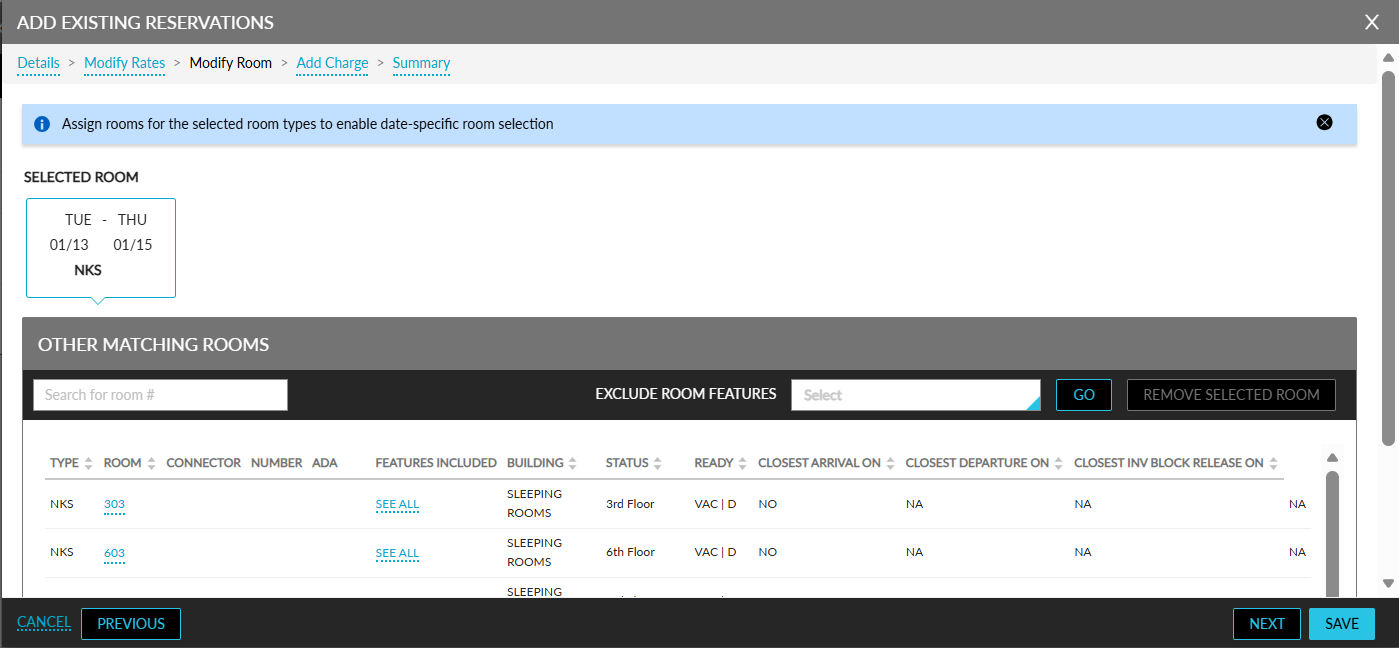
On clicking on Next in the Modify Rates tab, users will be navigated to the Modify Room tab.
-
This tab allows users to select and change the room numbers only.
-
The Other Matching Rooms table will display the following details:
-
Only the room type selected in the Modify Rates tab, or
-
The available room numbers in the primary reservation’s existing room type, if the room type was not modified.
-
-
If the room is already assigned to the primary reservation and the room type remains unchanged, the assigned room number will automatically be displayed in this section.
-
If the room type is changed for the entire share in the Modify Rates tab, then the room number will be reset.
-
If any one of the selected reservations is in the In-house status, then this section will be mandatory for the user to assign the room, else this section is optional.
-
When there is multiple reservations in the In-house status, then the room will reset and the Modify Room section will be mandatory.
Add Charge Tab
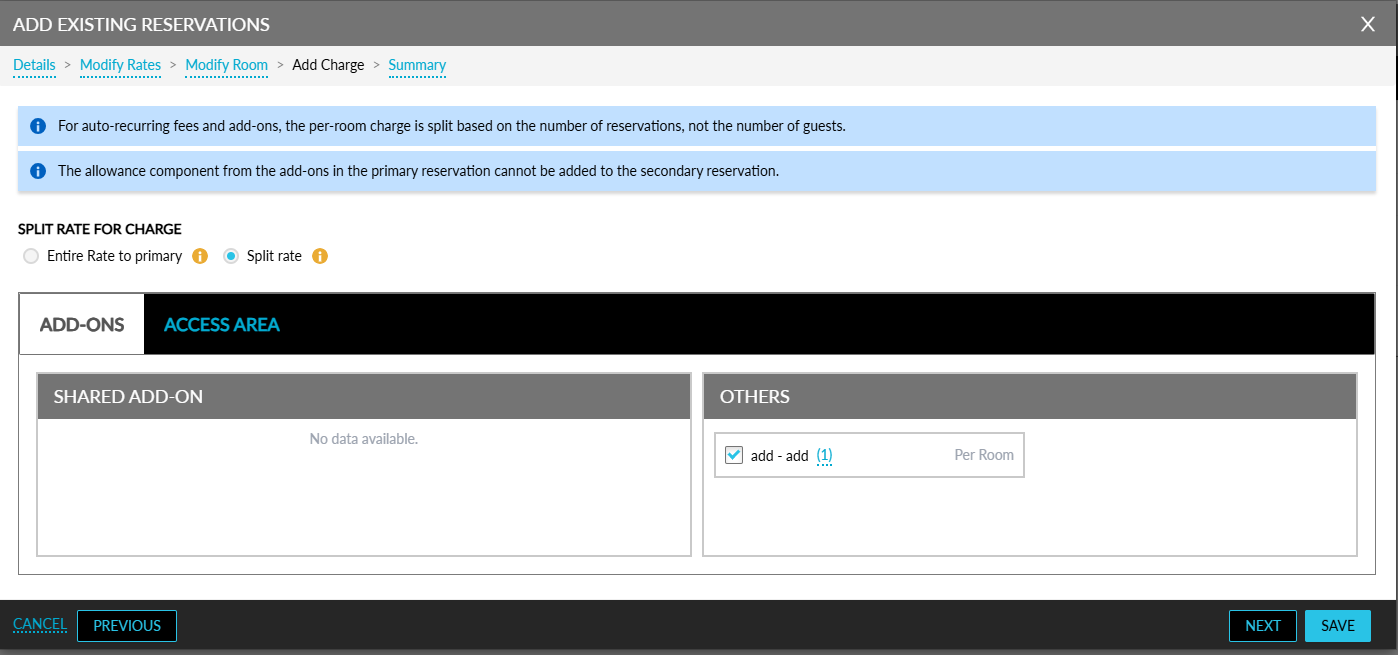
On clicking Next in the Modify Room tab, users will be navigated to the Add Charge tab. This tab allows users to post addons and access area fees to the reservations within the share set.
The following charge split options are supported:
-
Entire Rate to Primary: All per room charges associated with the reservation will be posted to the primary reservation only.
-
Split Rate: All per room charges will be split equally between the shared reservations for the overlapping days.
The Split Rate option will be selected by default.
Add-Ons Section
-
All the active addons configured in the property are displayed.
-
Enhanced addons will not be displayed.
-
Addons associated with access area components or package components will not be displayed.
-
Addons configured with early departure fees will not be displayed.
-
When an addon contains only one component configured as a per room allowance component, it will not be displayed in this section.
-
Each addon card will display the component count next to the addon name. When the user hovers over the addon hyperlink, the system will display the addon name and each component name along with its configuration type, such as per room, per adult, or per reservation.
-
When the addon contains only one component, the component type will be displayed in the card. If the addon contains multiple components with different configurations, the value will be displayed as Varies.
-
When the share is created, if the addon contains a single component, it will be applied to the share set with one component. If additional components are later added to the addon configuration, those components will not automatically apply to existing shared reservations. The additional components will be applied only when another reservation is added to the share set.
-
The user will be able to select addons, and the selected addon will be added to all reservations within the share set (primary and secondary). If an addon is not required for a specific reservation, the user must manually delete it from that reservation.
The add-ons charges are posted to the reservations as follows:
|
Frequency |
Description |
|---|---|
|
Per Guest / Per Adult / Per Person Charges |
When these charges are added to the share set, the configuration will be taken from the add-on set up and applied to the respective reservation. The individual reservation will pay the charges. |
|
Per Reservation Charges |
When these charges are copied to the secondary reservation, the configuration from the add-on setup will be applied, and the individual reservation will be charged. |
|
Per Room Charges |
Per room charges will follow the selected charge split option:
For example, when a resort fee of $100 with a quantity of 2 is copied:
|
When an add-on contains both:
-
One allowance component (configured as per room charge or allowance), and
-
One fixed component
Only the fixed component will be copied to the secondary reservation when applied to the share set. The per room charge (non-allowance) will follow the selected Charge Split option.
When an add-on contains only a per room allowance component, it will not be available in the Add Charge section for adding to the share set.
Allowance components will not be applied to the share set when adding add-ons that contains both fixed and allowance components.
Access Area Tab
This tab displays the access areas configured in the property. Users can select and apply access areas to both primary and secondary reservations.
When the access area is chargeable, the charge component will follow the selected charge split option when applied in bulk.
When the access area is non-chargeable, it will be added to the reservations, and no reservation will be charged.
When the same access area already exists in the secondary reservation, the access area will remain associated. However, charge posting from the date of share creation will follow the selected charge split option.
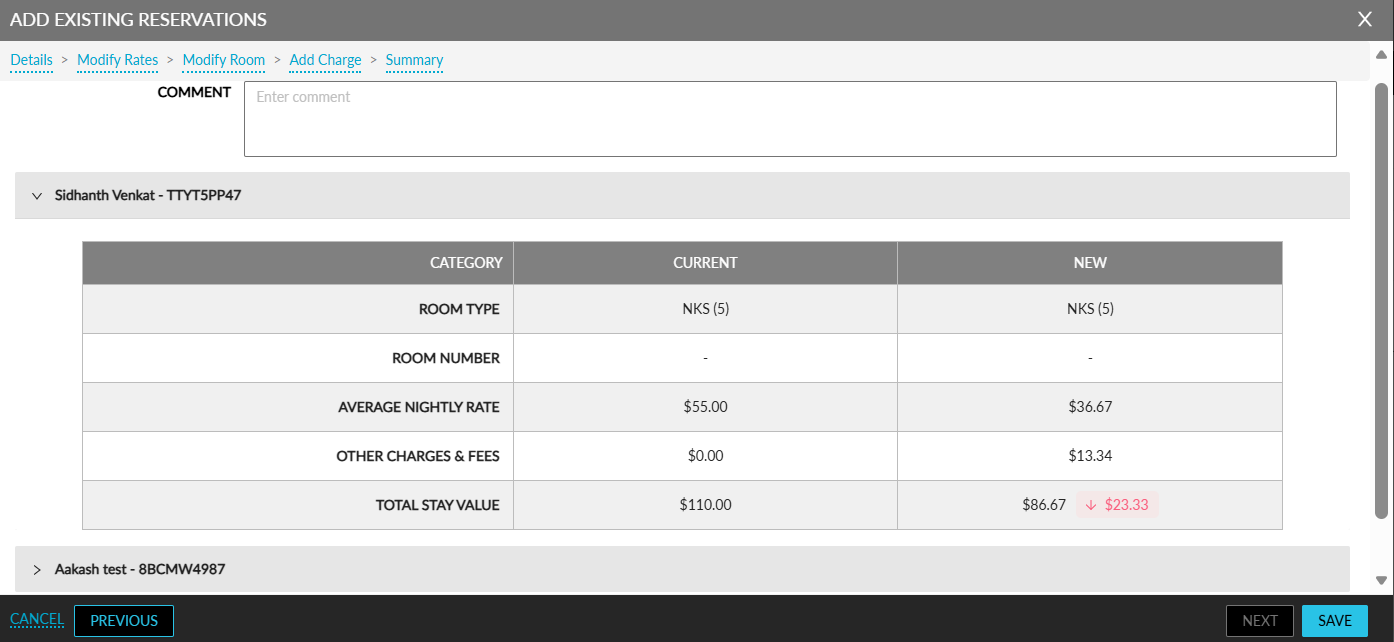
Summary Tab
On clicking Next in the Add Charge tab, users are navigated to the Summary tab. The following new fields have been added to the Summary tab:
-
Reason for Room Move
-
Comments
These fields capture the reason for the room move within the share set and are displayed when the following conditions are satisfied:
-
When the primary and secondary reservations have different room types.
-
When the room type is updated for all shared reservations in the Modify Rates tab.
-
When the room number is modified at the time of creation of shared reservations.
The summary for each reservation will be displayed in accordion. This tab will be displayed when the following operations are performed:
-
Create a share set with existing reservations
-
Adding existing reservation
-
Modify reservation (changing room type or room number)
-
Modify room number/room type/select room from other matching room/select room from guest stay history/select from recommended room
Based on the configuration, the tab is mandatory for entering the room move reasons.
Add Comp Certificate Tab
This tab is displayed when the room rate of the primary or any secondary reservation falls below the configured property threshold value. In this tab, users will be prompted to select a comp category. Only existing admin comp certificates configured in the system will be available for selection.
Modifications Made to Primary and Secondary Reservations During Share
Rate Plan
-
When the Apply Same Rate Plan flag is enabled, the primary reservation’s rate plan will be copied to all secondary reservations for the overlapping days. Secondary reservations will automatically inherit the primary reservation’s rate plan for those dates.
-
When the Same Rate Plan flag is disabled, each reservation will retain the rate plan selected in the Modify Rates tab. The selected rate plan will be applied independently to each respective reservation.
-
The Tax Exempt flag will not be modified for either primary or secondary reservations during the share process. Each reservation will retain its existing tax-exempt value.
-
The following policies will be updated based on the rate plan configuration:
-
Deposit
-
Cancellation
-
No Show
-
Early Departure
-
When the Same Rate Plan flag is enabled, the policies from the primary reservation will be copied to the secondary reservations for overlapping days. When the Same Rate Plan flag is disabled, the policies associated with the selected rate plan for each reservation will be applied independently.
-
The authorization rule will be updated for both primary and secondary reservations based on the applicable rate plan.
-
When the commission percentage is derived from the rate plan, the commission percentage will be updated based on the selected rate plan.
-
The deposit and TA commission (if calculated as a percentage of the room rate) will be calculated based on the room rate available in each individual reservation.
-
When the room rate is zero for a reservation:
-
The deposit will not be calculated.
-
The TA commission will be zero.
-
Any deposit that has already been collected will not be automatically refunded. If required, the refund must be processed manually.
-
-
Housekeeping Services
The housekeeping pattern from the primary reservation will be applied to all secondary reservations. The pattern will be applied at the room level and not at the individual reservation level.
This is applicable only when the Apply Same Housekeeping Pattern to All Shared Reservations flag is enabled.
In each reservation, the housekeeping pattern and associated services will be visible from the day of check-in through the day of checkout.
For example, when a reservation spans from January 1,2026 to January 10,2026, the housekeeping pattern and services will be displayed day-wise from January 1st through January 10th.
The Last Day housekeeping pattern will not be initiated on the checkout date of each individual reservation. Instead, it will be initiated only on the final checkout date of the last reservation within the share set.
For example:
-
R1 stays from January 1st to January 10th.
-
R2 stays from January 5th to January 11th.
-
R3 stays from January 7th to January 11th.
In this case, the Last Day pattern will be initiated only on January 11th, which is the final checkout date within the share set.
When changes are made to the housekeeping pattern in one reservation and there are overlapping days with another reservation, the changes will be reflected in the overlapping reservation. When there are no overlapping days, the changes will not reflect in other reservations. The user will be able to modify the housekeeping details in any reservation. When overlapping dates exist, the changes will automatically reflect in the other reservations for those overlapping days.
When any one reservation within the share set has a pet, the pet housekeeping pattern will automatically be applied to all reservations within the share set. The pet pattern will not automatically revert when the pet reservation checks out. If required, the user will need to manually update or remove the pet pattern.
Add-Ons
Based on the options selected in the Add Charge tab, new add-ons for per room charges will be added to the Estimated Charges section for current and future dates and the charge split option selected. The Split Rate option will be selected by default.
For example, consider shared reservations R1, R2, R3 created on day 1 with an add-on charge amount of $100.
First Night - Split
The first night of each reservation is identified and the charges are posted. When multiple reservations arrive on the same date, the charge will be split equally. When two reservations arrive on day 1, $100 will be split as $50 and $50.
If three reservations overlap on a night, $100 will be split as $33 each.
First Night - Post to Primary
The first night of each reservation is identified and the entire charge is posted to the primary reservation. Secondary reservations will receive $0 for the per room component.
Last Night - Split by Stay
The last night of each reservation is identified. When multiple reservations overlap on that date, the charge will be split equally.
Last Night - Post to Primary
The full charge for each reservation’s last night will be posted to the primary reservation. Secondary reservations will receive $0 for the per room component.
Every Night - Split by Stay
The charge will be posted for every night of the stay. When multiple reservations overlap on a given night, the charge will be split equally.
Every Night - Post to Primary
The charge will be posted for every night of the primary reservation only. Secondary reservations will receive $0 for per room components.
Days of Week - Split
When the add-on is configured for specific days of the week (for example Wednesday, Friday, and Saturday), the charge will recur on those days until the share ends. When multiple reservations overlap on those days, the charge will be split equally.
Days of Week - Post to Primary
When configured for specific days of the week, the full charge will be posted to the primary reservation on those recurring days.
Every Night (Interval-Based) - Split
When configured to post every 2 days, the charge will be split across overlapping reservations on applicable interval days.
Every Night (Interval-Based) - Post to Primary
When configured to post every 2 days, the full charge will be posted to the primary reservation on applicable interval days.
Access Area
Based on the options selected in the Add Charge tab, new access areas along with associated add-ons (if applicable) will be added to:
-
The Key Access Area section
-
The Estimated Charges section for the current and future dates
When an access area is not selected, it will be removed from both the Key Access Area and Estimated Charges sections. When the access area includes chargeable components, the charges are posted based on the selected charge split option. When the access area is non-chargeable, it will be applied without posting charges.
Packages
For packages, the selected Rate Split option for the room rate will also be applied to per room components within the package. The per reservation and per person components will always be applied to the respective reservation.
For example, consider shared reservations created using the same package rate plan with a guest count of 1 per reservation and the Same Rate Plan flag enabled.
Entire Rate to Primary
The full room rate and per room components will be posted to the primary reservation. Per reservation and per person components will be posted to each respective reservation.
Split Rate
The room rate and per room components will be split equally across reservations. Per reservation and per person components will be applied to each respective reservation.
Entire Rate to Each Sharer
Each reservation will pay the full room rate and all package components.
When the Same Rate Plan flag is disabled, the charges will be posted as follows:
Entire Rate to Each Sharer
Each reservation can select different rate plan and will pay its entire package components independently.
Additional Package Rules
When the Rate Split option is selected as Split by Guest Count, the package components and add-ons will always split by reservation count.
When a package contains a per room allowance component, the allowance charge will not be split and will be fully posted to the respective reservation.
Rate Plan and Package Validation
When the Same Rate Plan flag is enabled, the primary reservation’s rate plan or package will be automatically applied to the secondary reservations, and the rate will be displayed according to the selected rate split.
When the Same Rate Plan flag is disabled:
-
Each reservation’s selected rate plan or package will be automatically displayed when navigating from the Details tab to the Modify Rates tab.
-
Rates will be displayed according to the selected rate split logic.
Deletion of components
When a component is deleted from a shared reservation, it will be removed only from that reservation. It will not be removed from other reservations in the share set.
The deleted component will be automatically added back to that reservation in the following cases:
-
A new reservation is added
-
A reservation is removed
-
Modify Rates is triggered
Display Confirmation Popup
When a user proceeds to the Modify Stay pop-up screen and then returns to the Details section and adds or deletes a reservation from the share set or modified the primary reservation, a Confirmation pop-up screen will be displayed.
Once acknowledges, the user will be navigated back to the Details section. The user must click Next to proceed.
Audit & History
All modifications made during the creation of shared reservations will be captured in the following areas:
-
Audit Log
-
Reservation History
Adding New Reservations to the Share Set
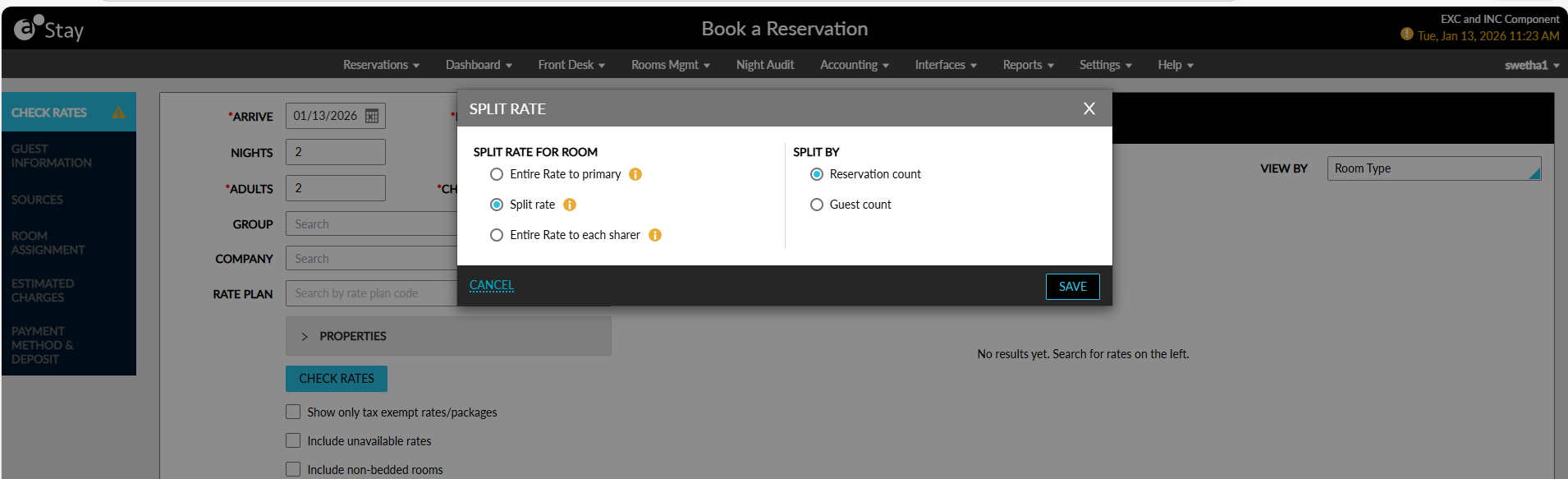
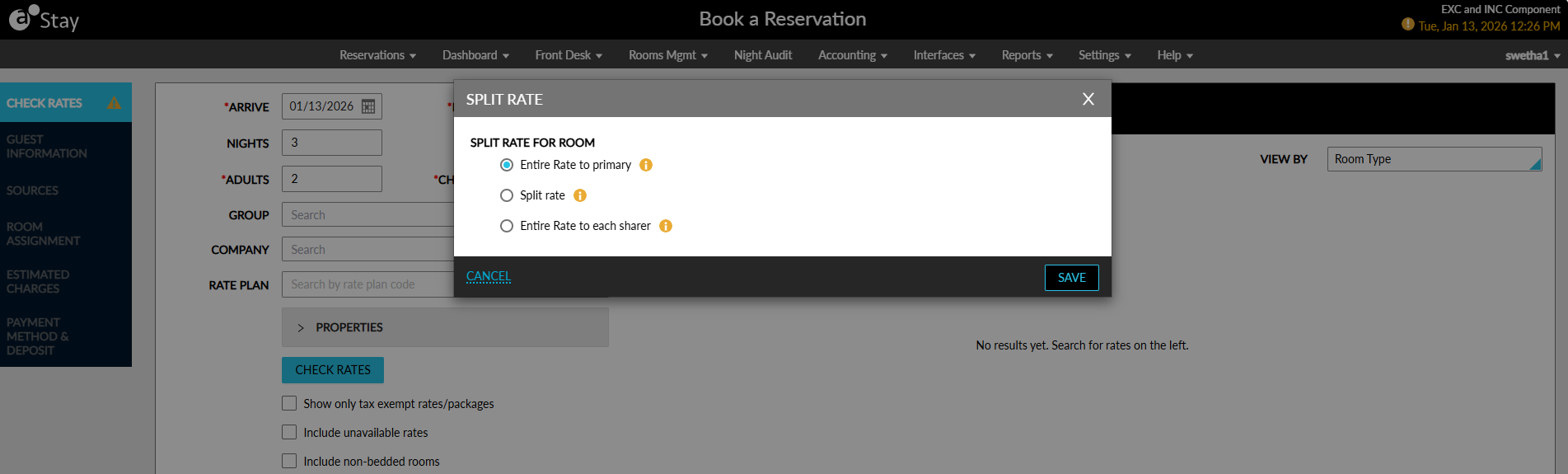
Users can add new reservations to a share set by clicking on the Create New Reservation option in the Share Reservation screen (Reservation ➜ Reservation Summary ➜ Share badge ➜ More ➜ Create New Reservation). When clicked, the Split Rate pop-up screen appears.
A group reservation and a transient reservation cannot be allowed within the same share set. When a user attempts to link them, the following message will be displayed: This reservation is part of a share. Group and transient reservations cannot be shared together.
When users create a new share set using this option:
-
The Split rate option will be selected as the default Split Rate for Room option.
-
Reservation count will be selected as the default Split By option.
Users can select a different option if required. When the share set is already created and when a new reservation is added using the Create New Reservation option, the Split Rate for Room option that is currently applied to the share set will be selected by default. Users can modify the selected option if required.
Select Rate Plans for Reservations
When the Same Rate Plan flag is enabled, for the overlapping days:
-
The primary reservation’s rate plan will be automatically selected.
-
The rate will be calculated and displayed based on the selected split rate option.
-
Other rate plans will be disabled and unavailable for selection.
For non-overlapping days:
-
No rate plan will be selected automatically.
-
Users can select any available rate plan.
When the primary reservation’s rate plan becomes unavailable after the creation of shares, the following message will be displayed in the Check Rates tab: Primary reservation rate plan is unavailable. Share reservation cannot be created.
When the Same Rate Plan flag is disabled:
-
The user will be able to select any available rate plan for both overlapping and non-overlapping days.
-
The rates displayed in the Check Rates tab will reflect the selected split rate option.
Add-ons and Access Area
When any shared add-ons or access areas exist for the share set, the add-ons and access areas will be automatically added to the newly created reservation.
Records Created for Modifications
The modifications made when creating shared reservations are captured in the following areas:
-
Audit Log screen
-
Reservation History section
Enhanced Share Reservation Management and Revenue Recalculation
Stay is enhanced to support room changes, room type changes, stay date modifications, room releases, rate updates, and revenue recalculation for shared reservations. These enhancements ensure that rates and revenue are recalculated accurately when changes impact a share set.
The following enhancements have been made:
-
Apply Changes to All Shared Reservations and Break Share options have been introduced when updating room numbers, room types, stay dates, room assignments, and estimated charges.
-
A new step, Rate Change, has been added that displays the impact of rate recalculation for both the reservation being removed from the share set and the remaining shared reservations.
-
The Change Room Number and Change Room Type workflows have been enhanced with room availability validation, dirty room handling, dynamic display of applicable sections, and share-specific processing.
-
Support has been added for modifying rates across a share set, which includes the following:
-
Rate split recalculation
-
Rate plan changes
-
Room type updates
-
Day-wise rate overrides
-
Tax-exempt and unavailable rate plan filtering
-
Property-level Same Rate Plan support
-
-
Users can select rooms from the Other Matching Rooms, Guest Stay History, and Recommended Upgrades sections with appropriate break-share and recalculation behavior.
-
A new permission, Stay_ShareRevenueRecalculation, has been added to control whether users can proceed without revenue recalculation. Authentication is required when the necessary permission is not available.
-
Revenue recalculation options have been introduced for break-share scenarios. Users can choose to recalculate or retain existing revenue, including nightly room charges, add-on charges, recurring charges, and auto-recurring charges.
-
The Change Stay Date workflows have been enhanced to automatically determine whether a date change breaks the share set and displays the appropriate confirmation, rate change, modify rates, modify room, and summary steps.
-
The Release Room functionality has been enhanced to allow users to unassign rooms for the entire share set or break an individual reservation from the share set while reviewing resulting rate changes.
-
The Estimated Charges section has been enhanced to support rate plan, room type, and room assignment updates through the shared reservation modification workflow.
-
Users can choose to split rates Manage Share ➜ Rate Split using the following options:
-
Reservation Count
-
Guest Count
-
Override Rate
-
-
When users extend or shorten the reservation duration, the primary reservation is automatically identified, and rates are recalculated based on the selected rate split method, overrides, and same-rate-plan settings.
-
The Recommended Upgrades section has been enhanced to automatically break the reservation from the share set and recalculate rates and upgrade fees based on the selected revenue recalculation option.
-
The Auto Date Roll workflow has been enhanced to automatically recalculate revenue when cancelled or no-show reservations are removed from a share set.
-
The Cancel Reservation, No Show, and No Show Guaranteed workflows have been enhanced to break reservations from the share set and display resulting rate changes before the action is completed.
When only the room number is modified and the selected room belongs to the same room type, the Modify Rates section is skipped and only the Summary section is displayed.
When a reservation is checked out, cancelled, or marked as no-show, it is removed from the share set. Reinstating the reservation does not automatically add it back to the share set. Users must manually add it again.
Enhanced Rate and Charge Recalculation for Shared Reservations
Stay is enhanced to preserve and recalculate overridden rates and charges during shared reservation updates. Rate and charge distributions are automatically recalculated when reservations are added, removed, split, extended, shrunk, reassigned as primary, or updated with additional guests.
This enhancement supports all share allocation methods, including Entire Rate to Primary, Split by Reservation Count, Split by Guest Count, and Full Rate to Each Sharer, while continuing to apply the Keep Current Rates, Same Rate Plan, revenue recalculation settings, package components, extra adult charges, and rate or charge overrides.